Change WhatsApp main device - guide [2025]
Veröffentlicht am
11.04.2025
Arrange a non-binding consultation now
Im unverbindlichen Gespräch zeigen wir Ihnen, wie Sie Kunden per WhatsApp zu Terminen einladen und Anfragen gemeinsam im Team beantworten. Zusammen schauen wir, welche Abläufe sich in Ihrem Betrieb sinnvoll automatisieren lassen.

Whether you're switching from an Android device to a new model or moving from iPhone to iPhone, switching devices is usually straightforward — as long as you stick to the right order and pay attention to a few details. In this article, we'll show you step by stepHow to switch your main WhatsApp device securely and smoothly — including a separate section for WhatsApp business users and useful tips for a stress-free change.
Step-by-step guide to changing the main WhatsApp device
For Android users
1.: Open WhatsApp: Start WhatsApp on your current Android device.
2.: Open settings: Tap the three-dot menu at the top right and select Settings.
3.: Save chats: Go to Chats > Chat Backup and create a recent backup to Google Drive.
4.: Change SIM card: Remove the SIM card from the old device and insert it into the new Android device.
5th: Installing WhatsApp: Download WhatsApp from the Google Play Store onto the new device and install the app.
6.: Perform verification: Open WhatsApp, agree to the terms of use, and verify your phone number.
7.: Restore backup: After verification, you will be asked whether you want to restore the backup you found. Confirm this to transfer your chats and media.
For iPhone users
1.: Start Use WhatsApp on your current iPhone.
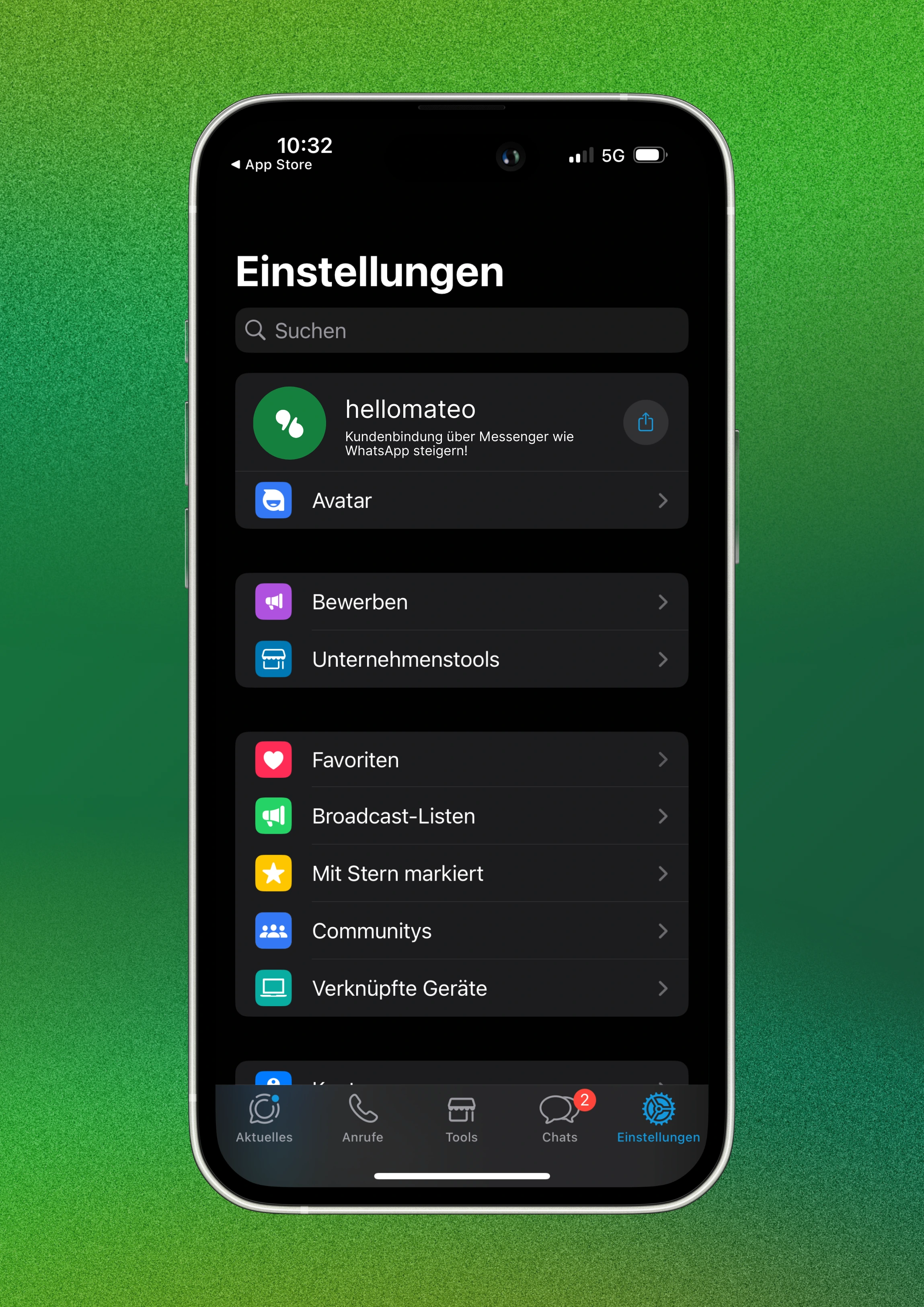
2.: Open settings: Tap Settings in the lower-right corner.
3.: Save chats: Choose Chats > Chat Backup and create a recent backup in iCloud.
4.: Change SIM card: Remove the SIM card from the old iPhone and insert it into the new iPhone.
5th: Installing WhatsApp: Download WhatsApp from the App Store to the new iPhone and install the app.
6.: Perform verification: Open WhatsApp, agree to the terms of use, and verify your phone number.
7.: Restore backup: After verification, you will be asked whether you want to restore the backup you found. Confirm this to transfer your chats and media.
Note: As a result of new updates, the steps for switching devices may change. Therefore, check the Instructions on the official WhatsApp websiteif you have any problems.
How can you change the main WhatsApp device in WhatsApp Business?
WhatsApp Business is specifically designed for small and medium-sized businesses that communicate with customers via WhatsApp. Changing the main device — i.e. the smartphone on which the WhatsApp Business app is installed — generally follows the same steps as with the regular WhatsApp version. However, companies should consider a few additional aspects:
1. Create backup (Android and iPhone)
Before you change the main unit, you should use a complete Chat backup create:
- Android: Settings > Chats > Chat backup > “Back up to Google Drive”
- iPhone: Settings > Chats > Chat backup > “Back up now” (iCloud)
Make sure that not only the chats, but also the media files be saved, especially if you regularly send PDFs, product images or invoices.
2. Verification on the new device
Install WhatsApp Business on the new device, enter the phone number you used so far, and verify it. The backup is automatically recognized as long as you're signed in with the same Google or iCloud account.
3. Check automations and labels
After recovery, you should ensure that:
- Chat labels (e.g. “New Customer”, “Open Request”) have been correctly adopted
- Automated messages, such as absence notes or quick replies, continue to work as required
- Links to tools or APIs (e.g. hellomateo, CRM systems) are reviewed
Tip: Plan the switch outside of business hours so as not to interrupt active calls.
Tips for changing the main device in WhatsApp
Changing devices doesn't have to be stressful — with a few preparations, the changeover can be made smoothly. Here are the most important tips at a glance:
1. Test backup regularly
Not only do you create a backup just before the change, but also regularly test whether it can actually be restored in an emergency. Many users are surprised when the backup is outdated or damaged.
2. Activate two-factor authentication
In WhatsApp, go to Settings > Account > Two-Step Verification to activate a PIN. This also protects your account if your device is lost or stolen.
3. Plan dual SIM or phone number change
If you also change your telephone number as part of the switch, use the function first “Change number” in WhatsApp settings before you activate the new device. This is how you keep all chats, groups, and settings.
4. Deregister old devices
Don't delete WhatsApp on the old device until the switch is complete. If in doubt, you can check again or check settings on the old device.
It gets even better: Unlimited numbers, devices and users with the WhatsApp Business Platform
Although this new feature is already a significant improvement, the features of WhatsApp Business for business use are still severely limited. With the WhatsApp Business Platform WhatsApp is turning into a highly professional messaging channel for companies.
With hellomateo and the WhatsApp Business Platform companies can inspire their customers with customer communication and marketing, maximize their sales and minimize internal workload. The addition of unlimited devices, phone numbers and users, integrations with thousands of other software applications, WhatsApp newsletter marketing, unlimited scalability and flexibility, automatic responses, GDPR compliance, etc. — the WhatsApp Business Platform has so much to offer. Just arrange a free consultationto find out all the details Our customers know the following benefits particularly appreciated:
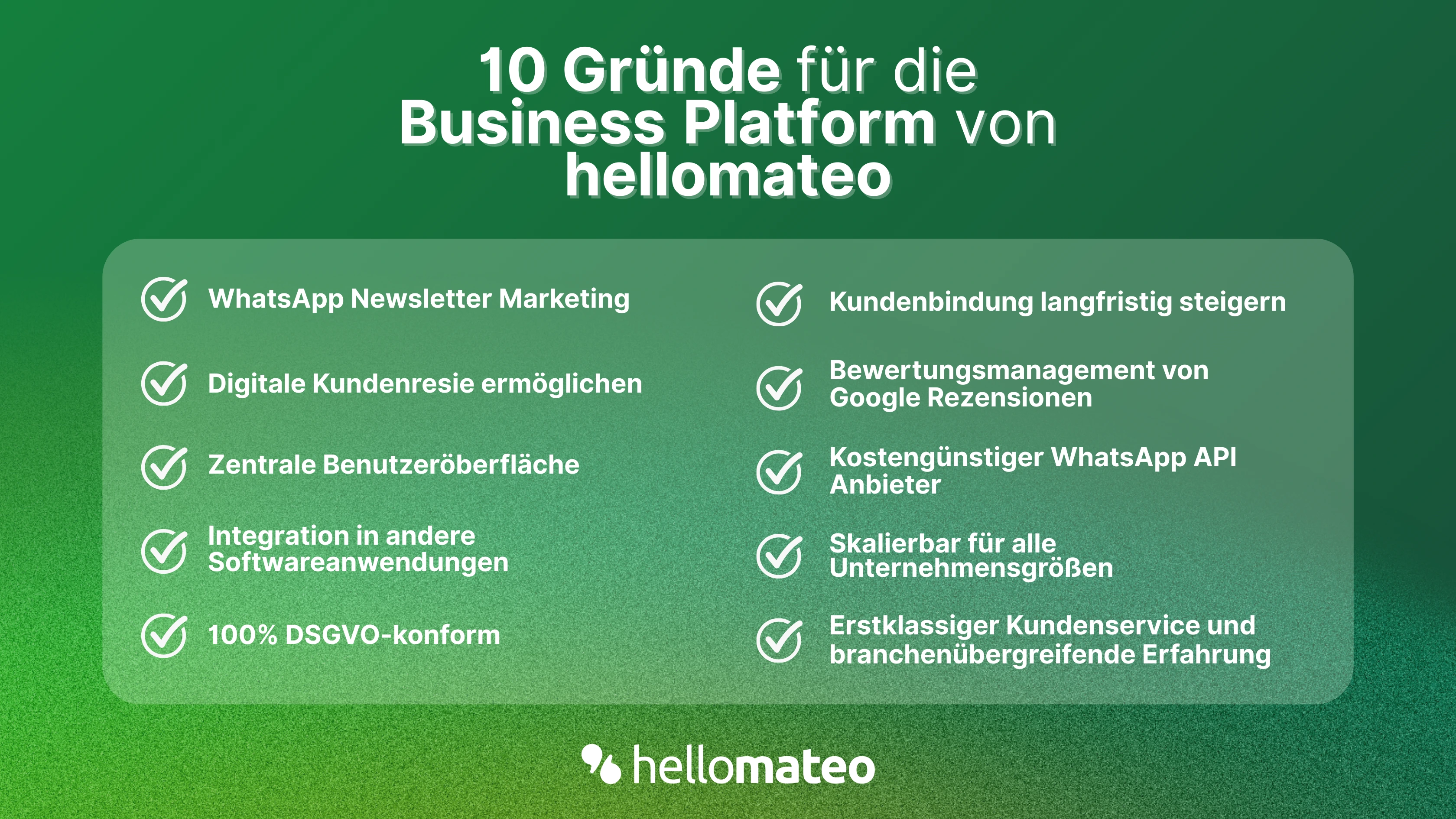
- Central user interface: hellomateo combines WhatsApp Business Platform, email, Instagram, SMS and Facebook Messenger in one central inbox. The intuitive user interface includes various tools for efficient customer communication and saves you valuable working time.
- integrations: With hellomateo, you can use WhatsApp in integrate over 6,000 software programs and fully automated Customer trips create with invitations, order confirmations, shipping information, invoices, and reminders.
- Newsletter marketing: Send GDPR-compliant Newsletter via WhatsApp or SMS and benefit from opening rates of over 90%.
- Assessment management: hellomateo can Automatically request online reviews from your customers, which boosts your Google ranking and trust in your company.
- Data protection: hellomateo meets all German and European Data protection requirements and offers end-to-end encryption for secure customer communication.
- scalability: Our software is suitable for Businesses of all sizes and can be extended indefinitely depending on the package.
- Diverse AI features: Our AI agent can automatically answer customer inquiries in chat, answer calls, help with the formulation of messages and much more.
Arrange a non-binding and free consultation and we'll show you how hellomateo covers your communication needs! Simply book an appointment here or write to us via our web widget.