Automated customer communication with customer journeys
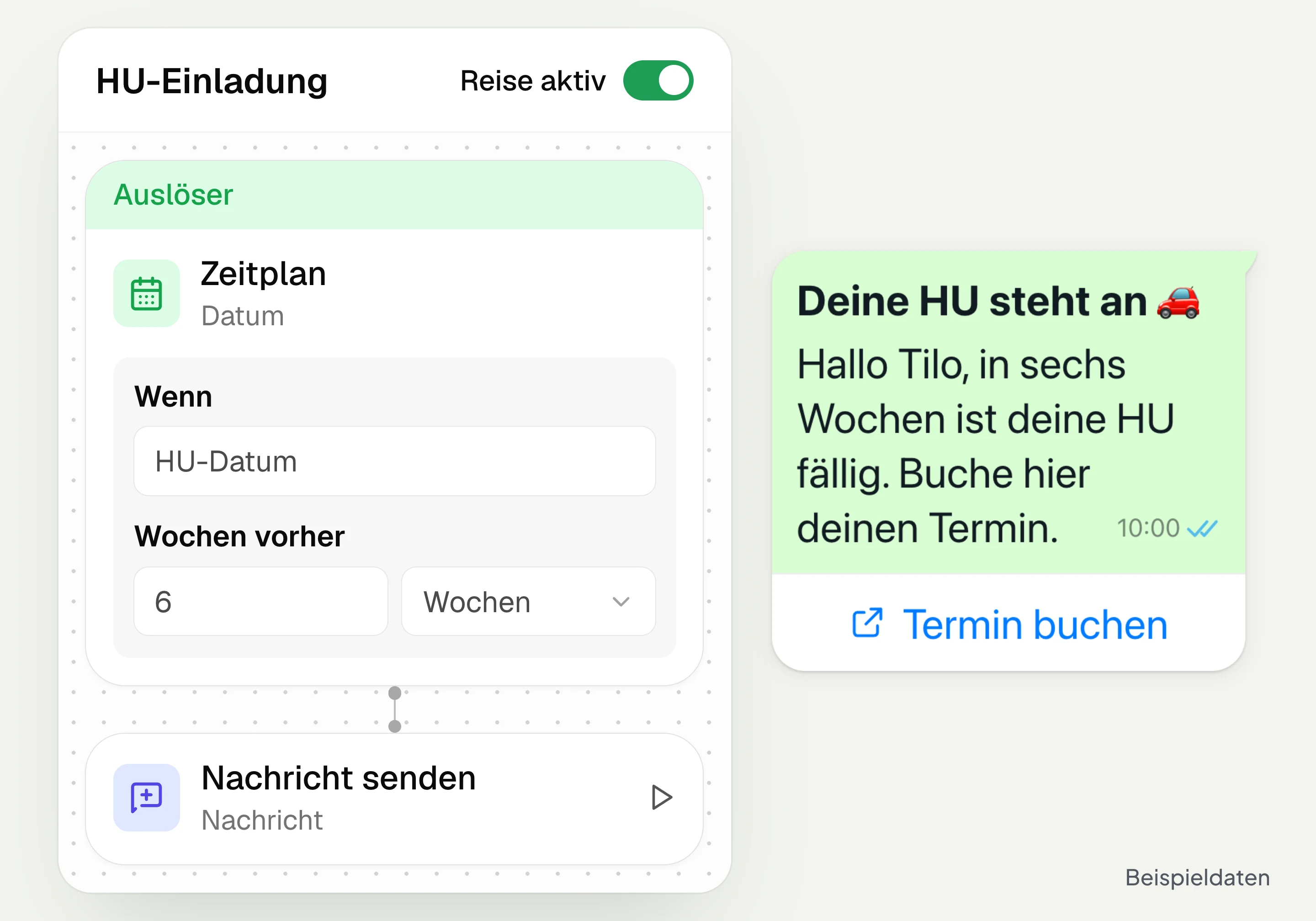
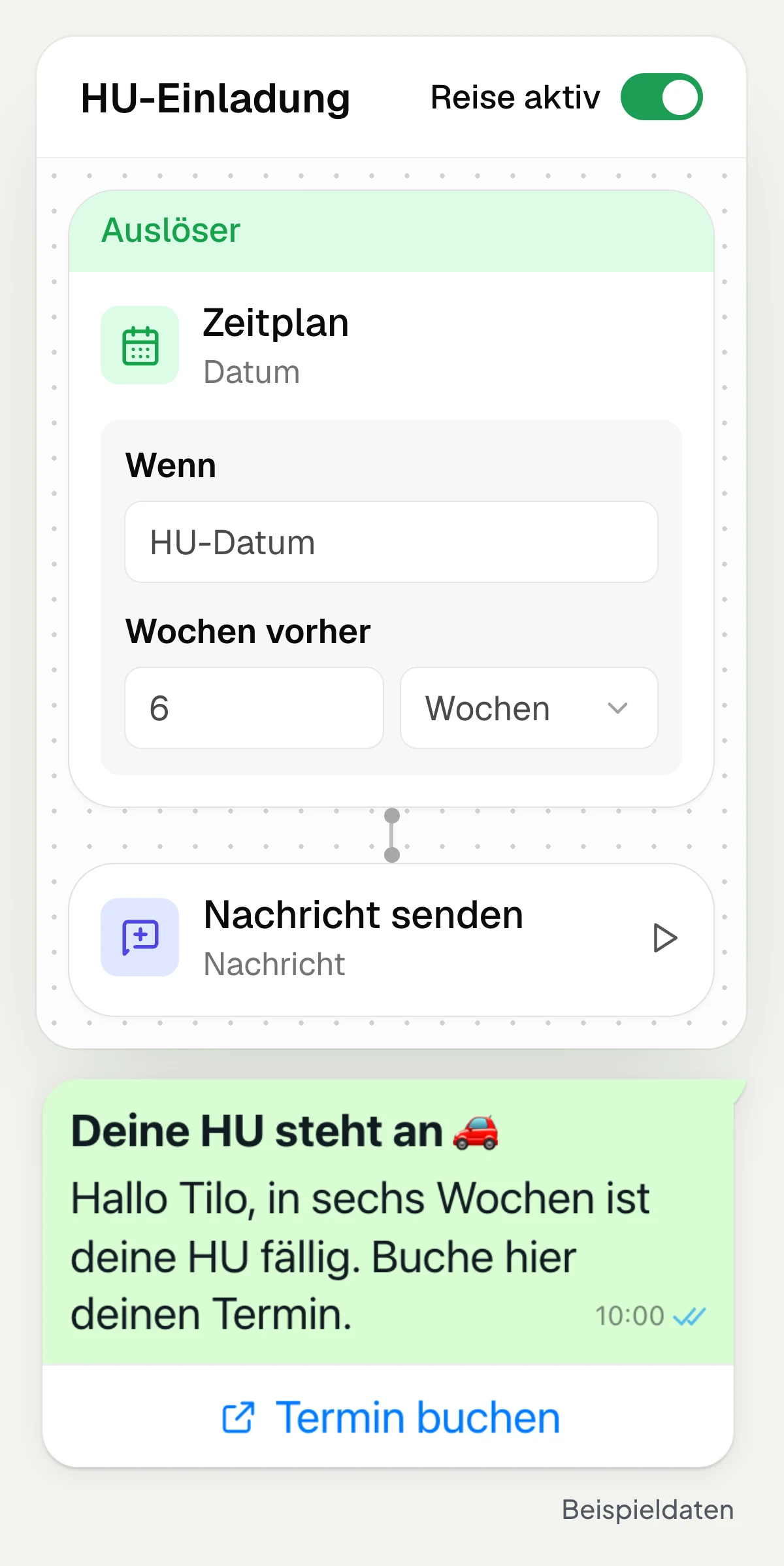
hellomateo customer journeys automate recurring processes, for example the invitation to the main inspection (HU) six weeks before it is due. Data from your industry software provides the occasion. You set the message, timing and follow-up steps. hellomateo sends automatically and shows you the progress per contact.
hellomateo automatically invites customers before they book
Data from your software triggers invitations
You see which step each contact has reached
Last updated: 28 October 2026
More than 2,000 customers use hellomateo






















From the main inspection date to the invitation on the phone
The main inspection date is ready
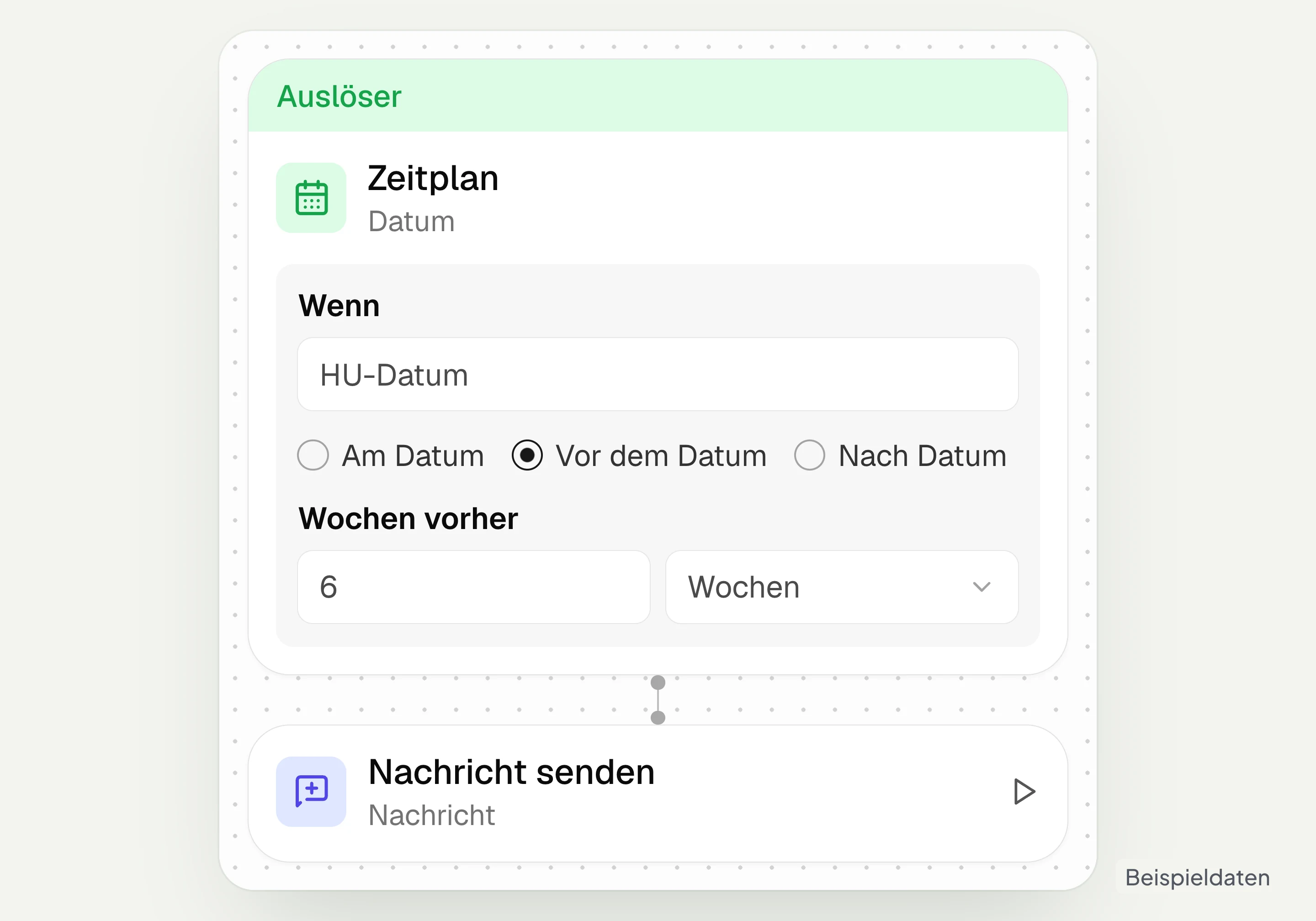
Your connected DMS passes, for example, the main inspection date to hellomateo. In “Schedule” you set how early the invitation should start, for example six weeks before it is due.
The invitation goes out automatically
hellomateo sends the prepared main inspection invitation at the set time. The message contains your booking link so the customer can choose an appointment themselves.
Your customer books or replies
Your customer opens the link and books on the linked page. If they reply, hellomateo can react to the inbound message and assign the conversation to a staff member.
You check the progress
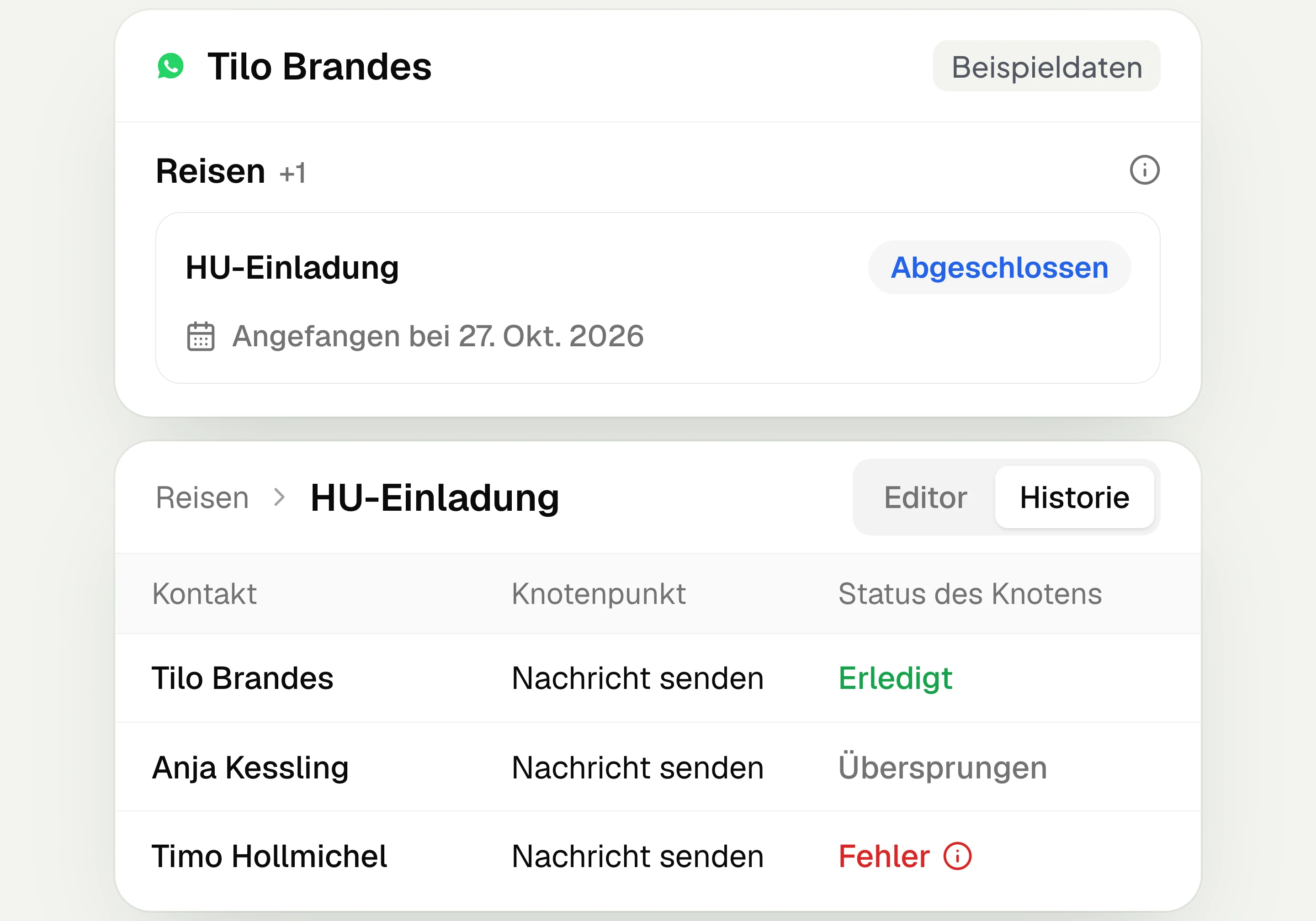
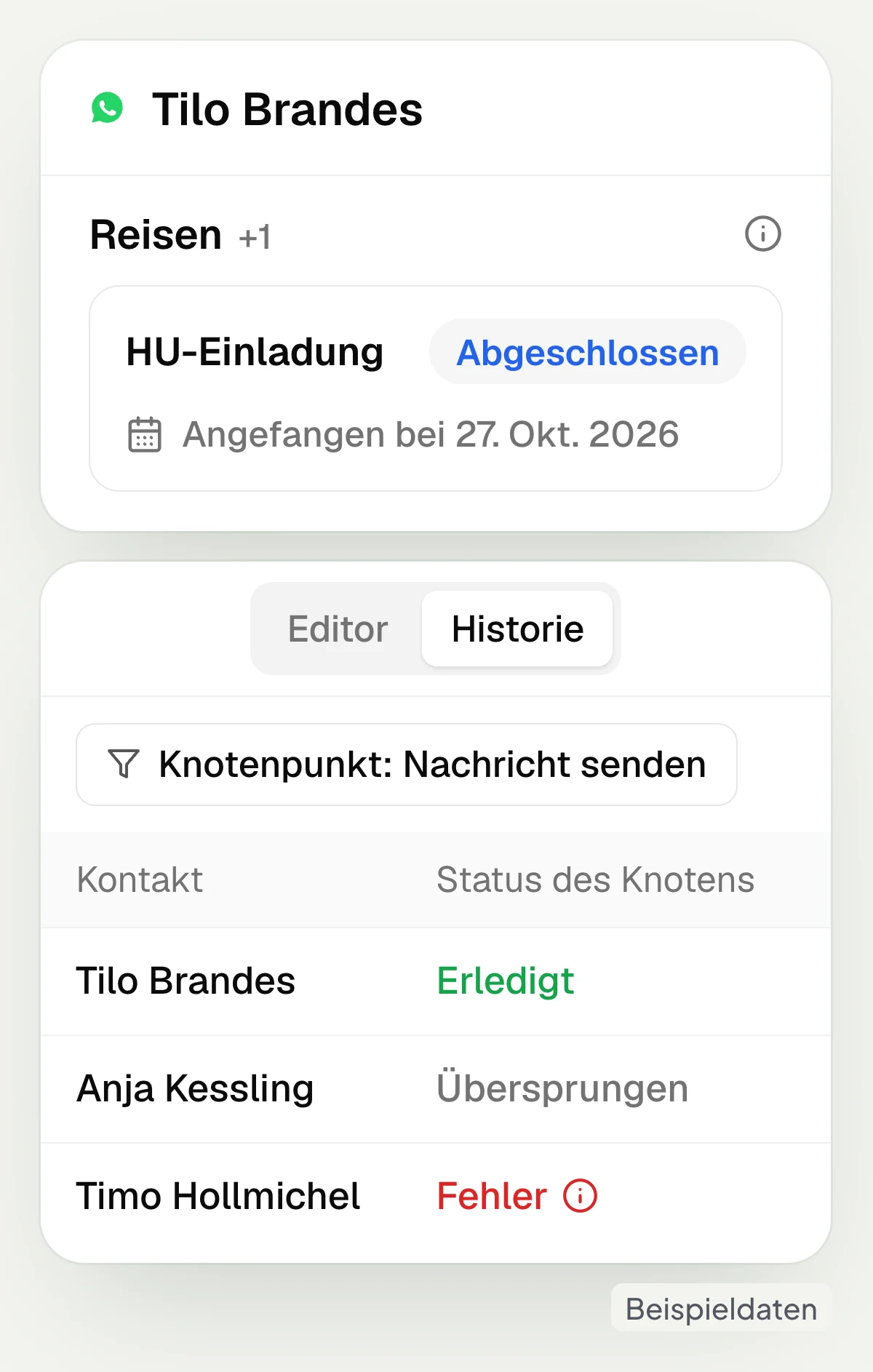
In the hellomateo “Runs” view you check the executed steps per contact. You see which steps were completed, skipped or ended with an error.
Learn more: Appointment booking, Central Inbox, Appointment reminder explained and Consent explained
How an occasion becomes the right message
With hellomateo you set what triggers an invitation, which steps follow and how you check the progress.
Choose the occasion: main inspection, eye test or replacement fitting
In hellomateo a date or event starts the process. With “Schedule” you use a date field, for example for the main inspection invitation six weeks before, the eye test invitation after two years or the invitation to a replacement fitting after 48 to 60 months. “Deal changed” and “Message inbound” can also start it. Which data is available depends on the integration.
Use “Schedule” with a date field
Set lead time in days, weeks or months
Choose “Deal changed” as the occasion
React to “Message inbound”
Connect message, waiting time and conditions
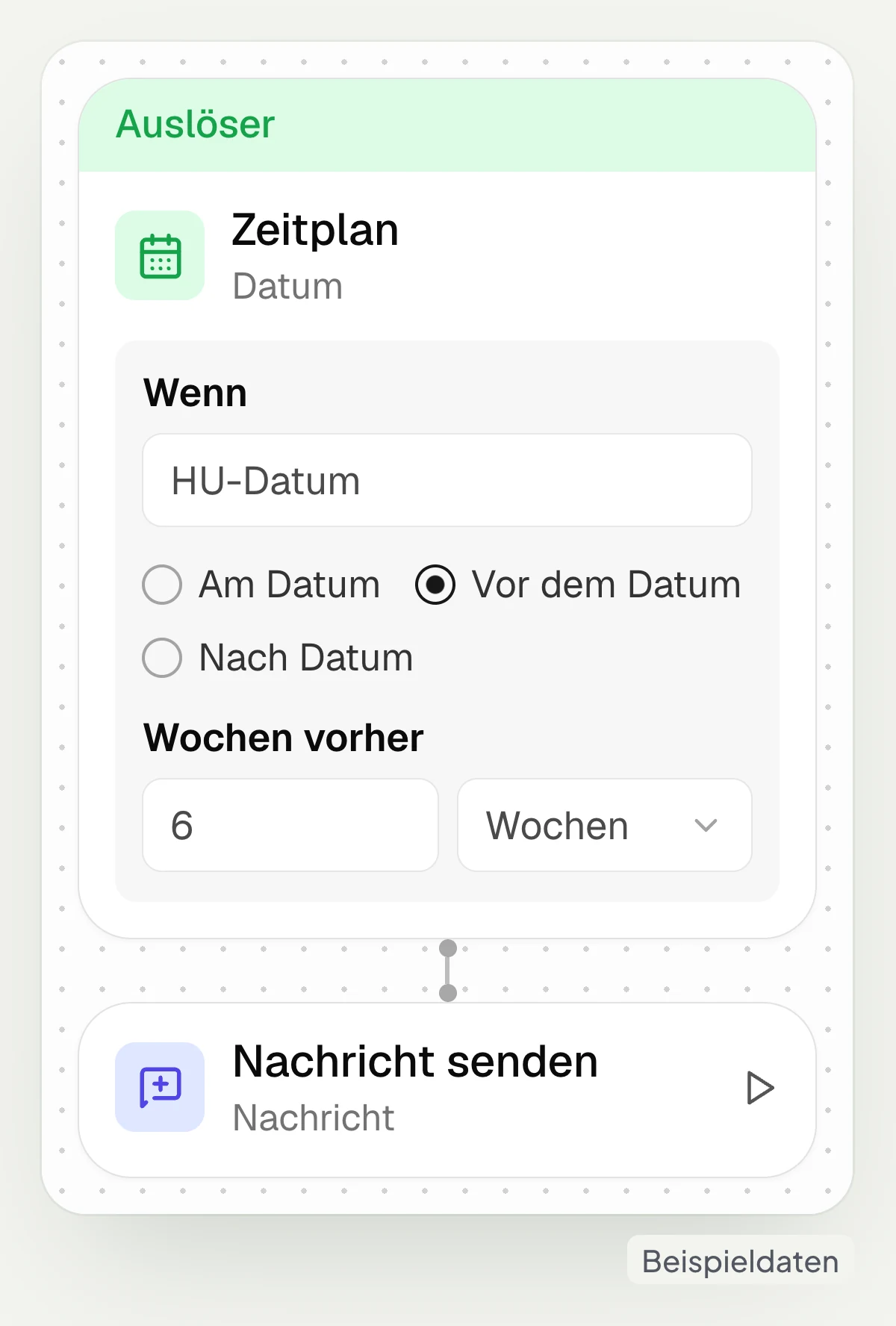
In the hellomateo editor you connect “Send a message”, “Wait for time”, “Wait for event”, “If/Else” and “Filter” into one process. After an invitation you can, for example, wait for a reply. With “If/Else” you set different next steps. With lists and filters you decide which contacts go through each step.
Send a prepared message automatically
Wait between steps
Wait for an inbound message
Select contacts via conditions
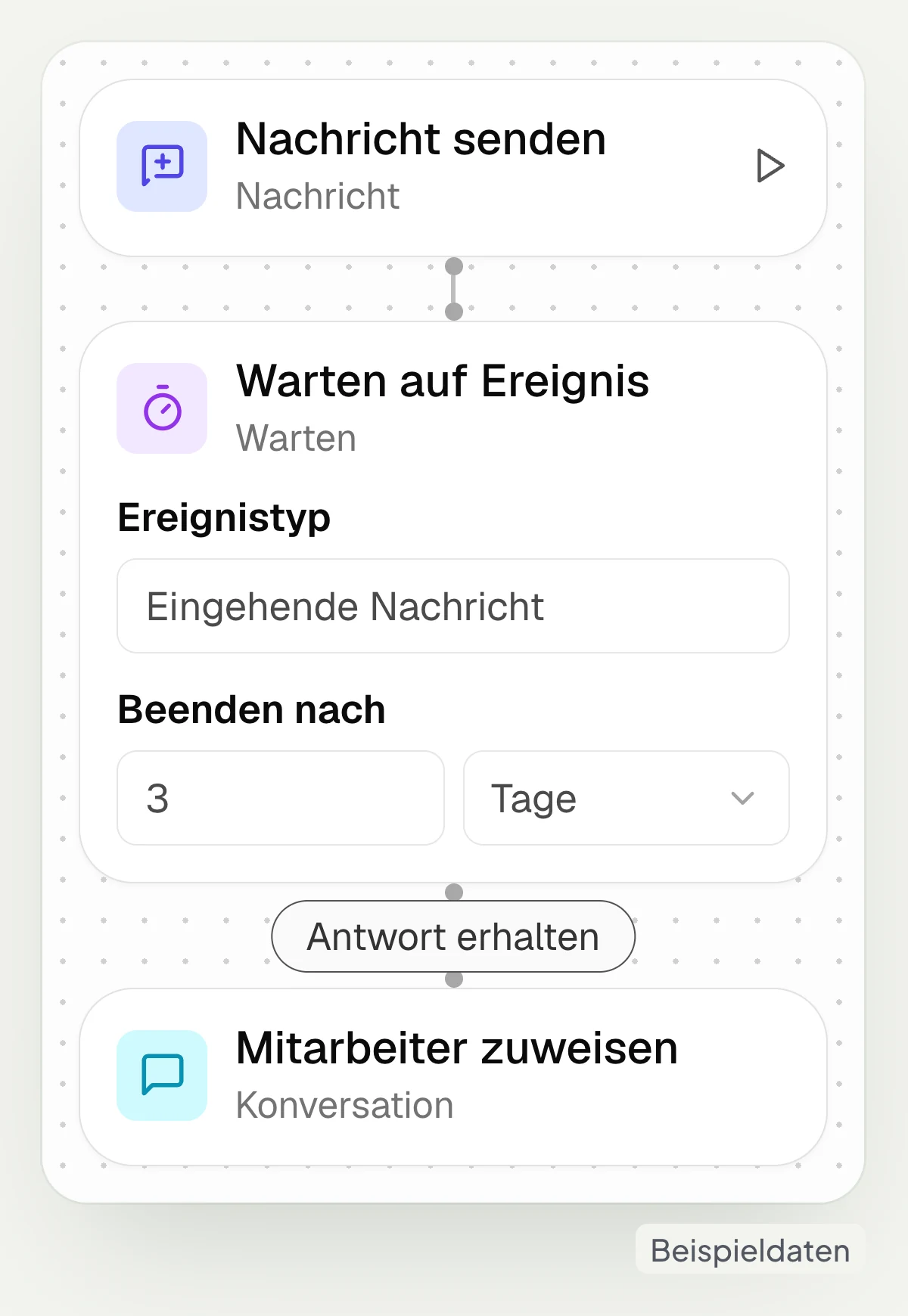
After a reply your team knows what comes next
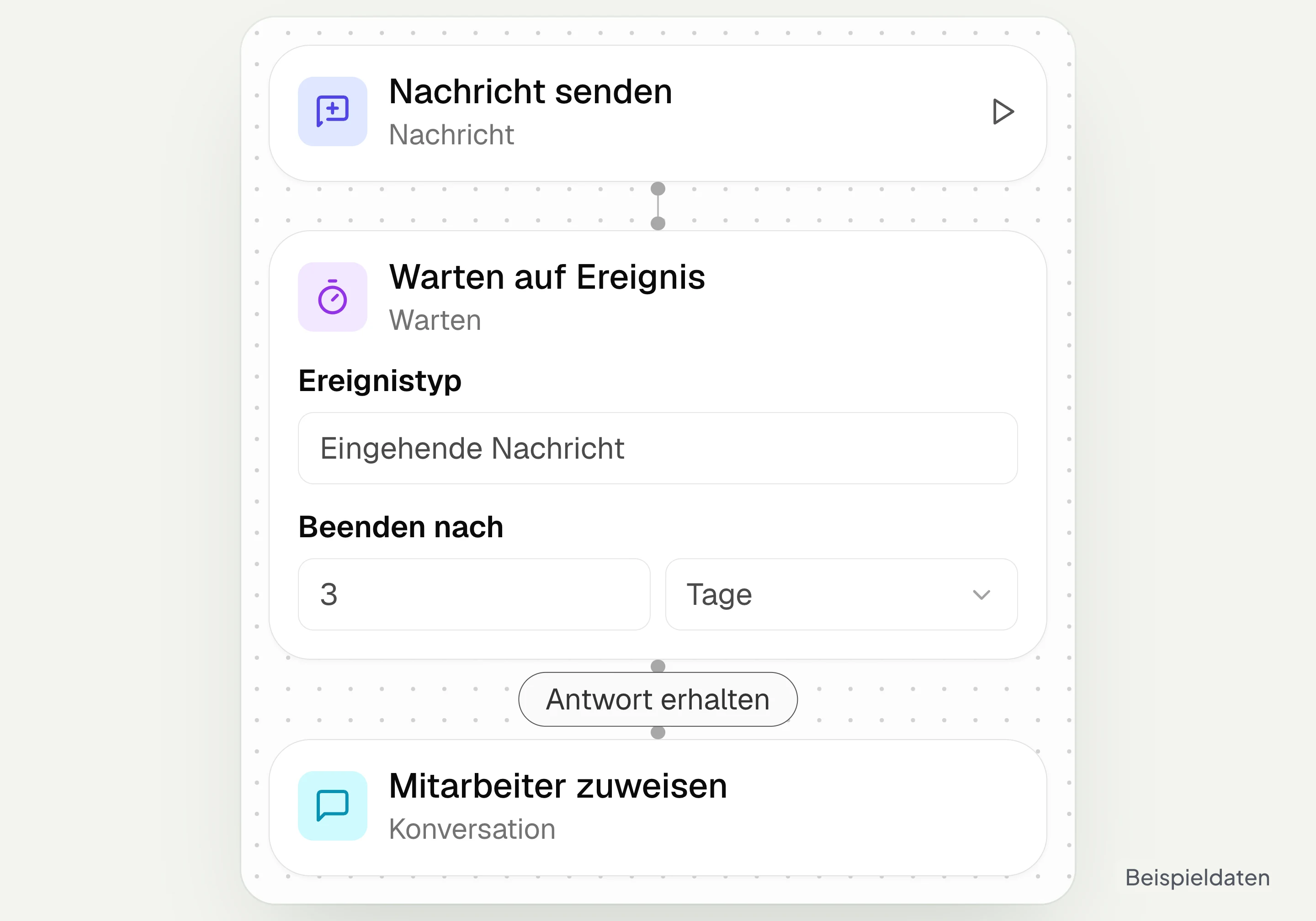
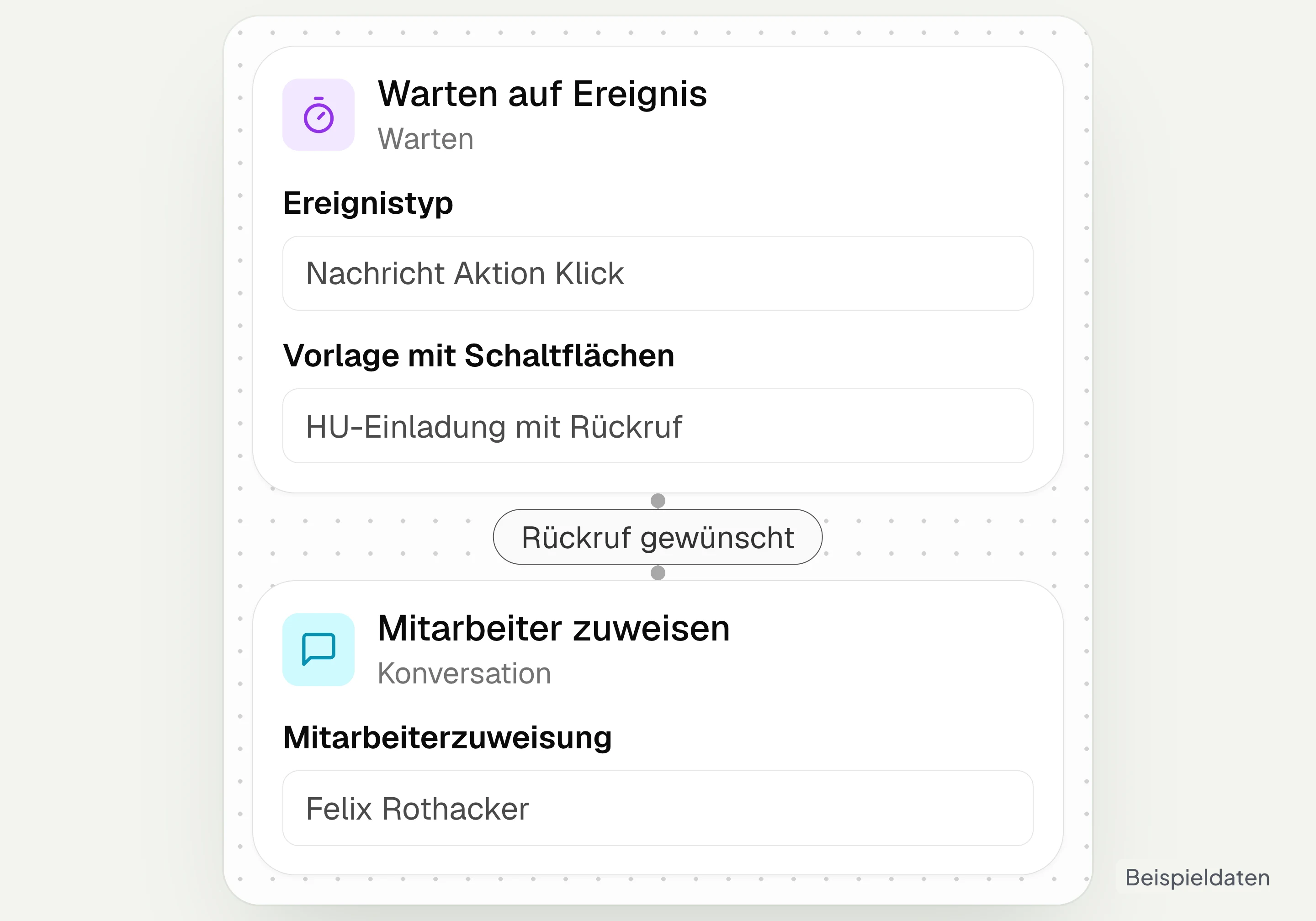
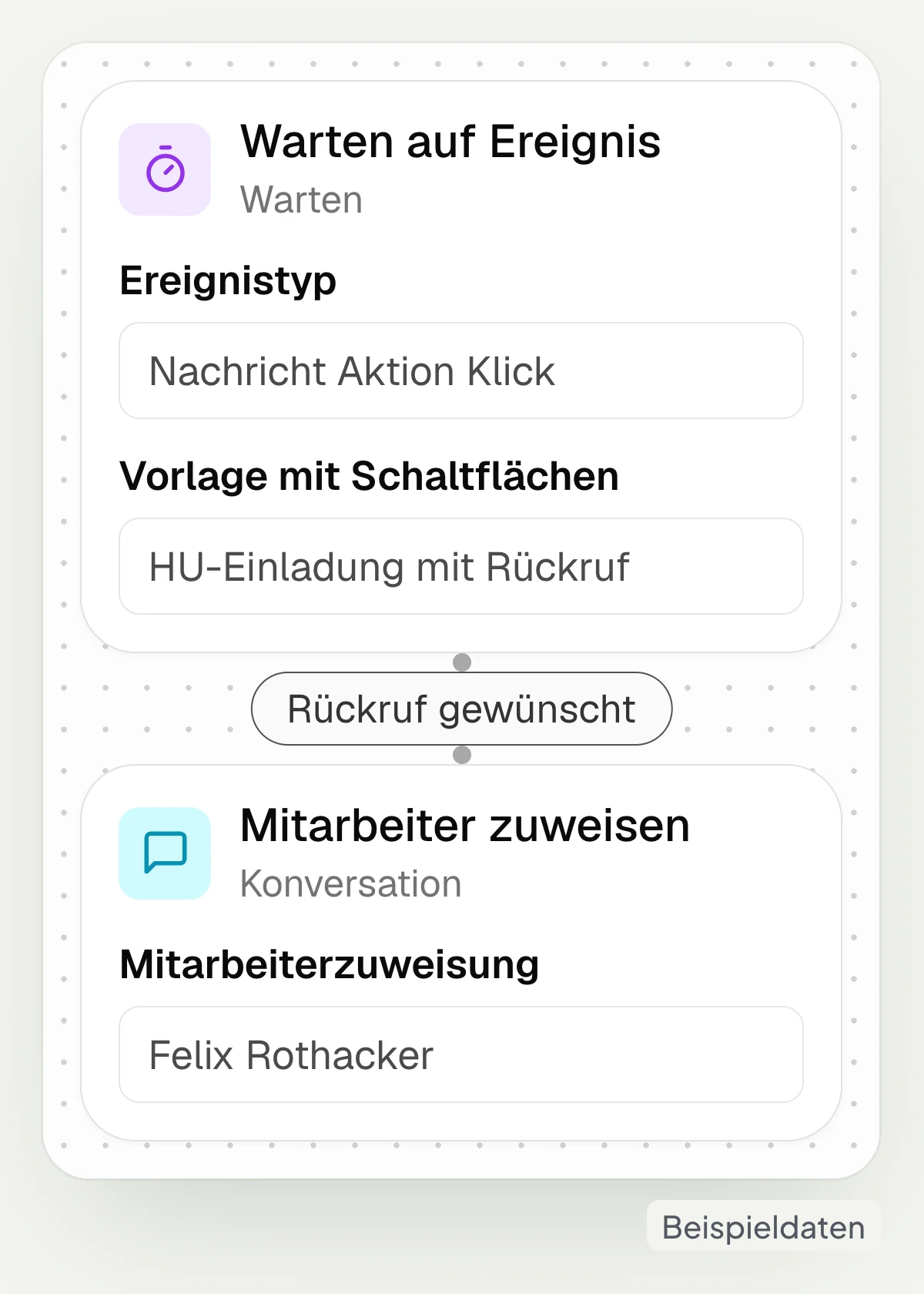
hellomateo can carry out further steps after a button click or an inbound message. With “Wait for event” you wait, for example, for the reply to the main inspection invitation and limit the waiting time. Then you assign the conversation to a staff member, add a tag to the conversation or update the membership of a contact list.
Wait for a button click as an event
Assign the conversation to a staff member
Tag the conversation automatically
Update contact list membership
Industry data makes the timing specific
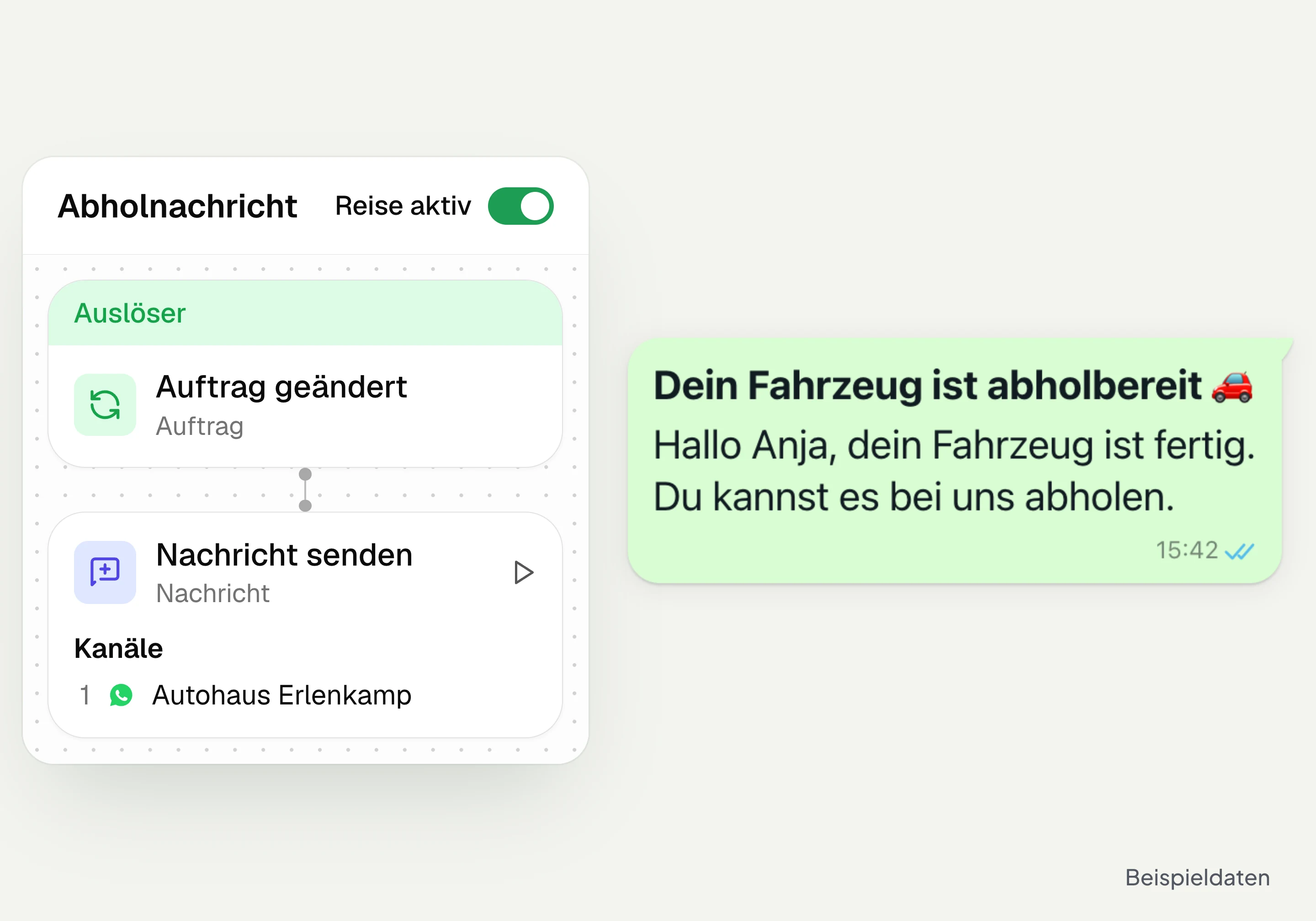
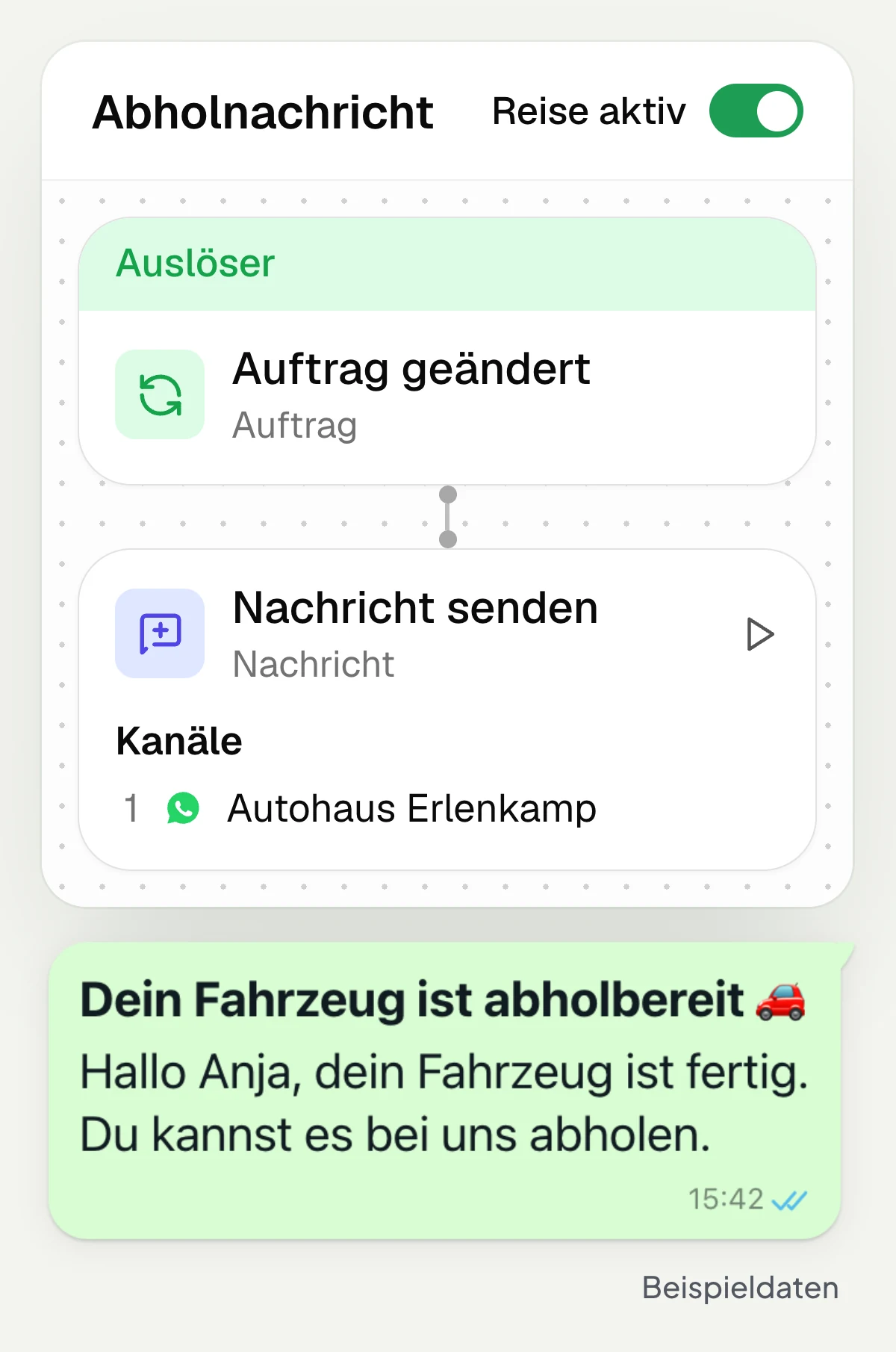
hellomateo uses transferred appointments, orders and vehicle or glasses data for automatic messages. If a vehicle is marked ready for pickup in the connected workshop planner, the pickup message goes out automatically. For invitations you use a date before the booking, for example the next main inspection. An appointment reminder, by contrast, follows before an appointment that is already confirmed.
hellomateo sets up processes such as the main inspection invitation at the setup appointment and trains your team for later adjustments.
Use due dates from the DMS for invitations
Use appointments for appointment reminders
Notify when a pickup status is transferred
Use order data for suitable processes
See which step a customer has reached
hellomateo shows how many contacts are currently going through the customer journey and the total number of executions, for example for your main inspection invitation. In the “Runs” view you check the status of individual steps per contact. In the editor you recognize the active version. In the contact details you also see when a process started and whether it is completed. This way you can trace a specific send.
See who is currently in the customer journey
See the total number of executions
Check step status in the “Runs” view
Recognize the active version in the editor
Let us show you how hellomateo builds your main inspection or eye test invitation and makes the progress per contact visible.
Which occasion brings customers back to you?
hellomateo uses the data from your connected software to trigger invitations, pickup messages and follow-ups.
Car dealership and workshop
hellomateo uses due dates from the DMS to invite customers to the main inspection and service and sends the pickup message as soon as the vehicle is marked ready for pickup in the connected workshop planner.
Opticians
hellomateo invites customers to an eye test based on your optician software and, depending on the integration, sends a pickup message, for example once the order is marked ready for pickup.
Hearing care
hellomateo invites customers to a hearing consultation based on the fitting date, for example after 48 to 60 months, and sends invitations to the annual check and reminders of booked fitting appointments.
Fashion retail
hellomateo sends messages after checkout or when an alteration is ready; with a suitable integration, the process creates the bonus voucher directly in your merchandise management system.
Furniture and kitchens
hellomateo announces the kitchen delivery when your merchandise management system transfers the date and automatically asks for a review once it reports the installation as completed.
Electronics retail
hellomateo announces appliance deliveries, follows up after installation with reply buttons and asks for a review after a completed customer service visit.
Matching features before and after the message
Read replies in the Central Inbox. Booking is an add-on; postal mailing in customer journeys can be chosen as an option in Business Plus and is included in Enterprise.
Central Inbox
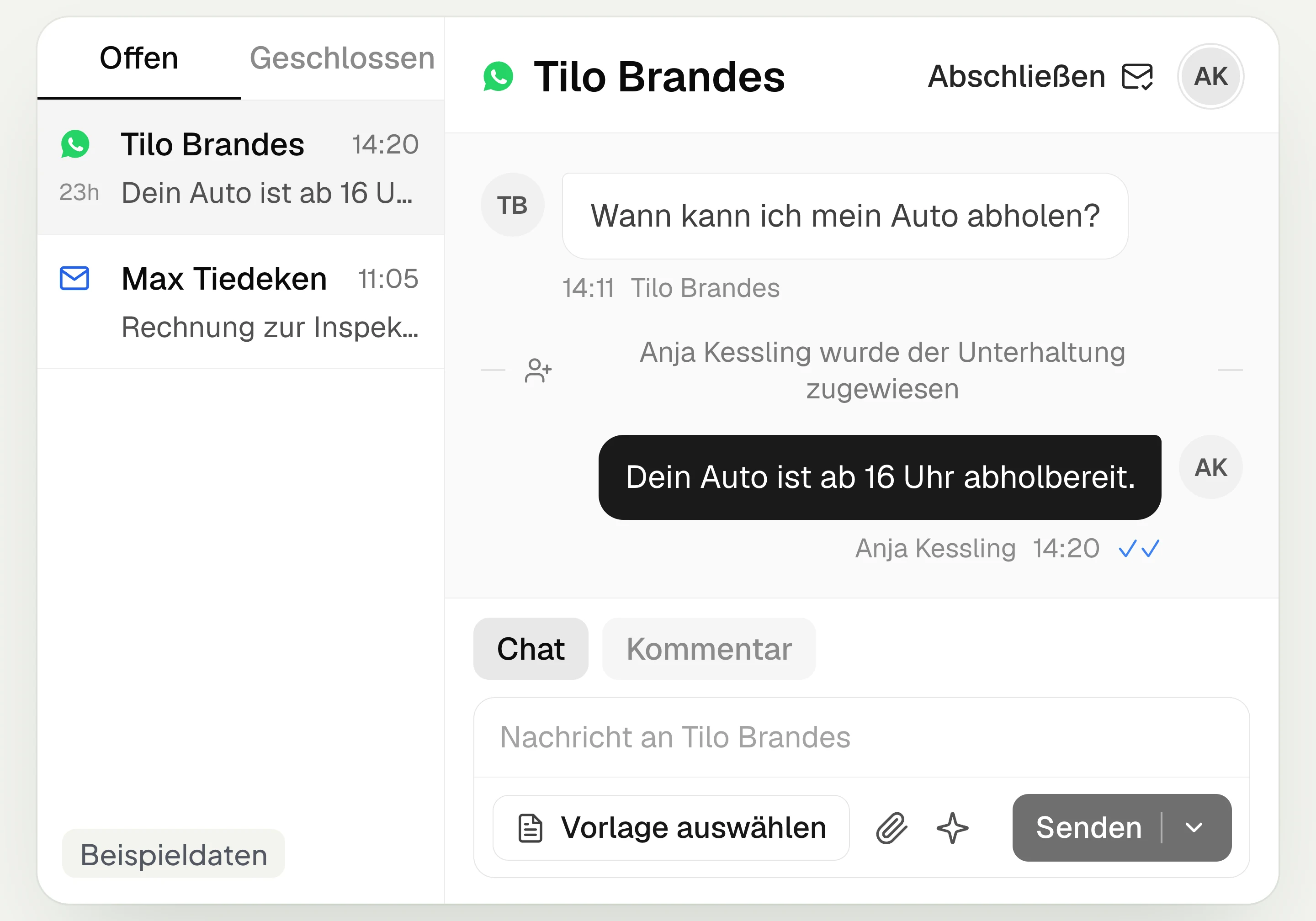
hellomateo brings together WhatsApp, email, Instagram and Facebook Messenger in one inbox. Multiple staff members write via the same WhatsApp number and assign conversations.
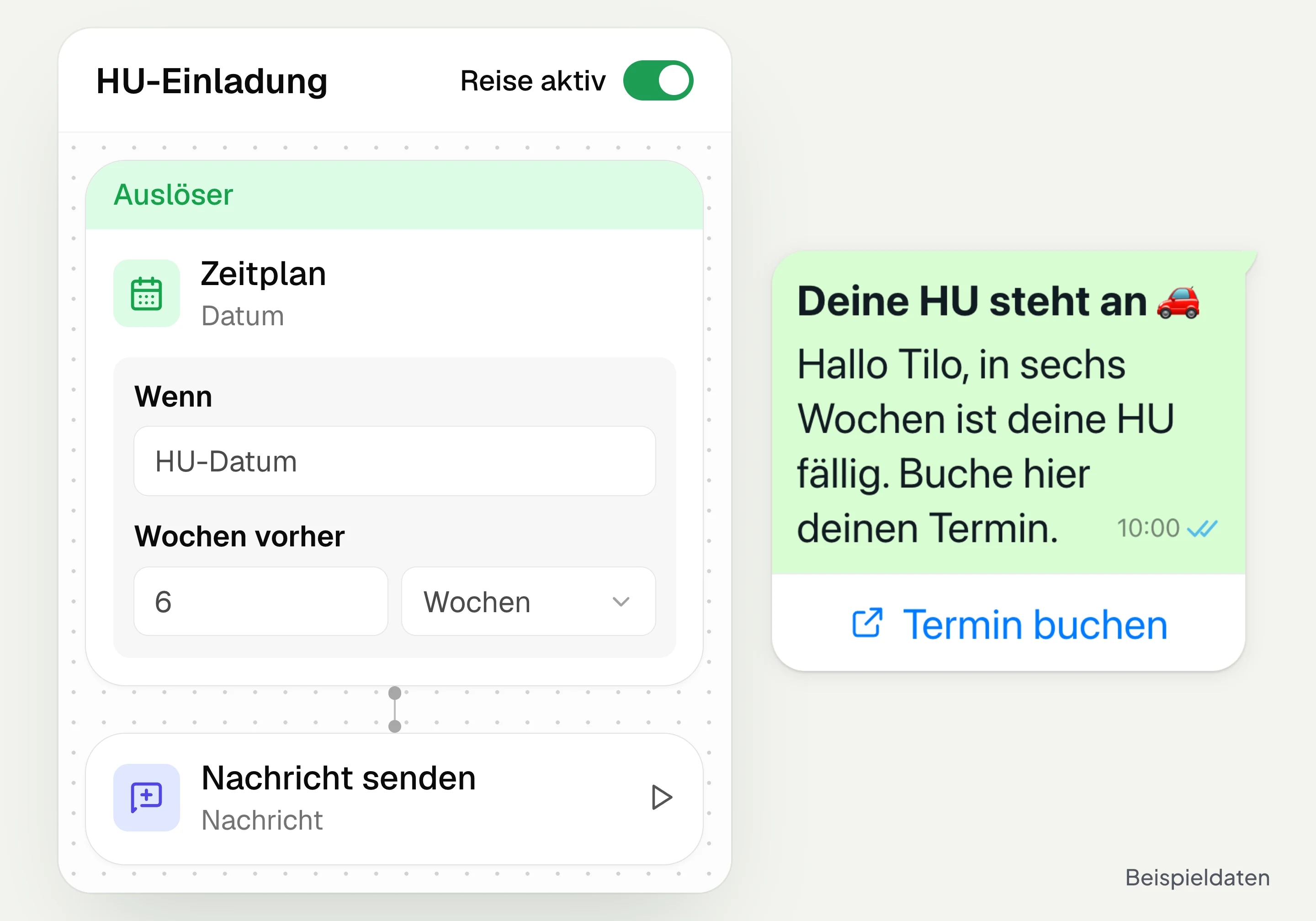
Automated customer journeys
Customer journeys in hellomateo send invitations automatically based on a date or event. You set the message and follow-up steps and check the progress per contact. Business and above.
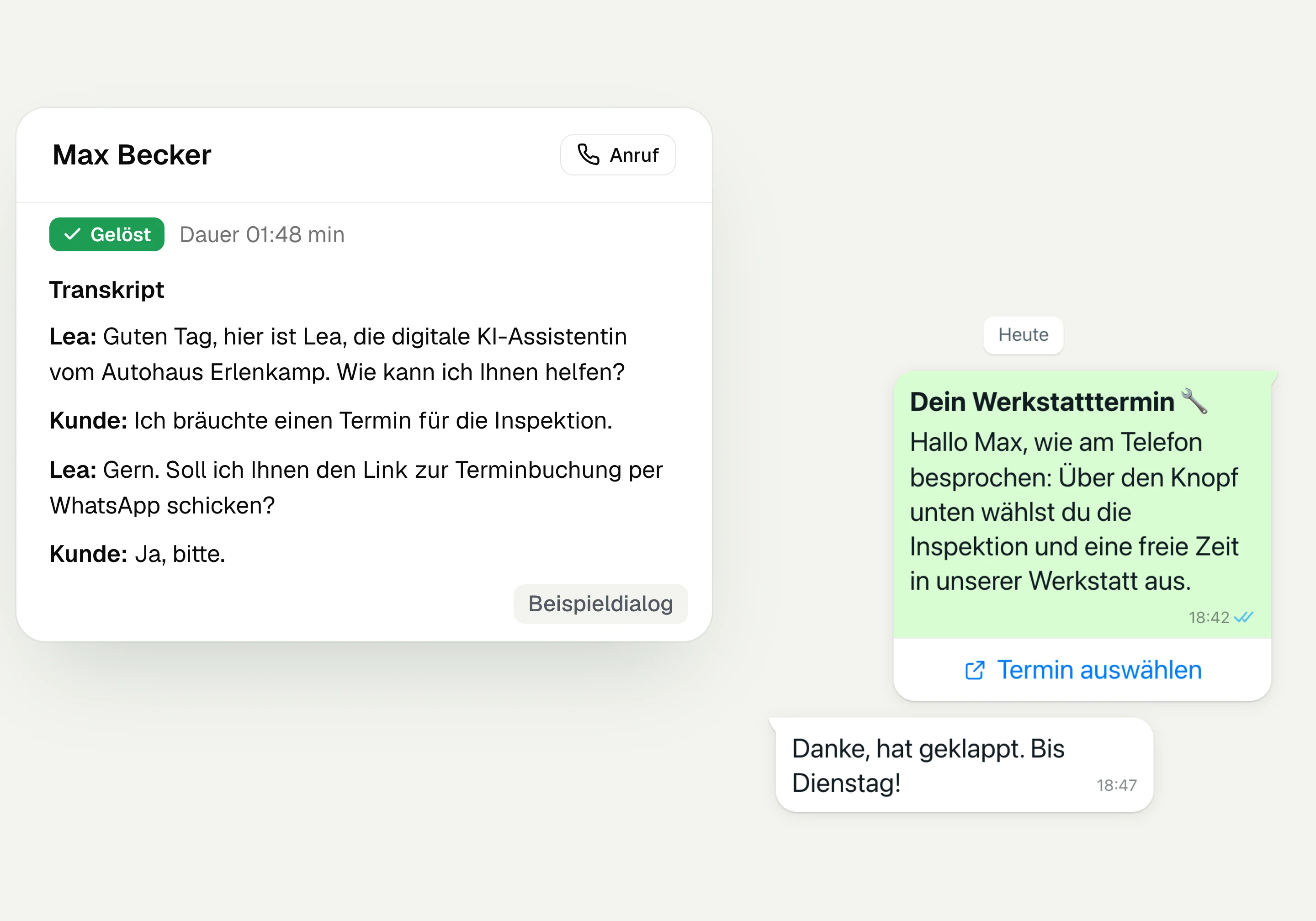
AI Telephony
hellomateo AI telephony takes calls, answers questions and sends the booking link via WhatsApp after consent. From €80 per month with 500 free minutes; additional minutes are charged on top.
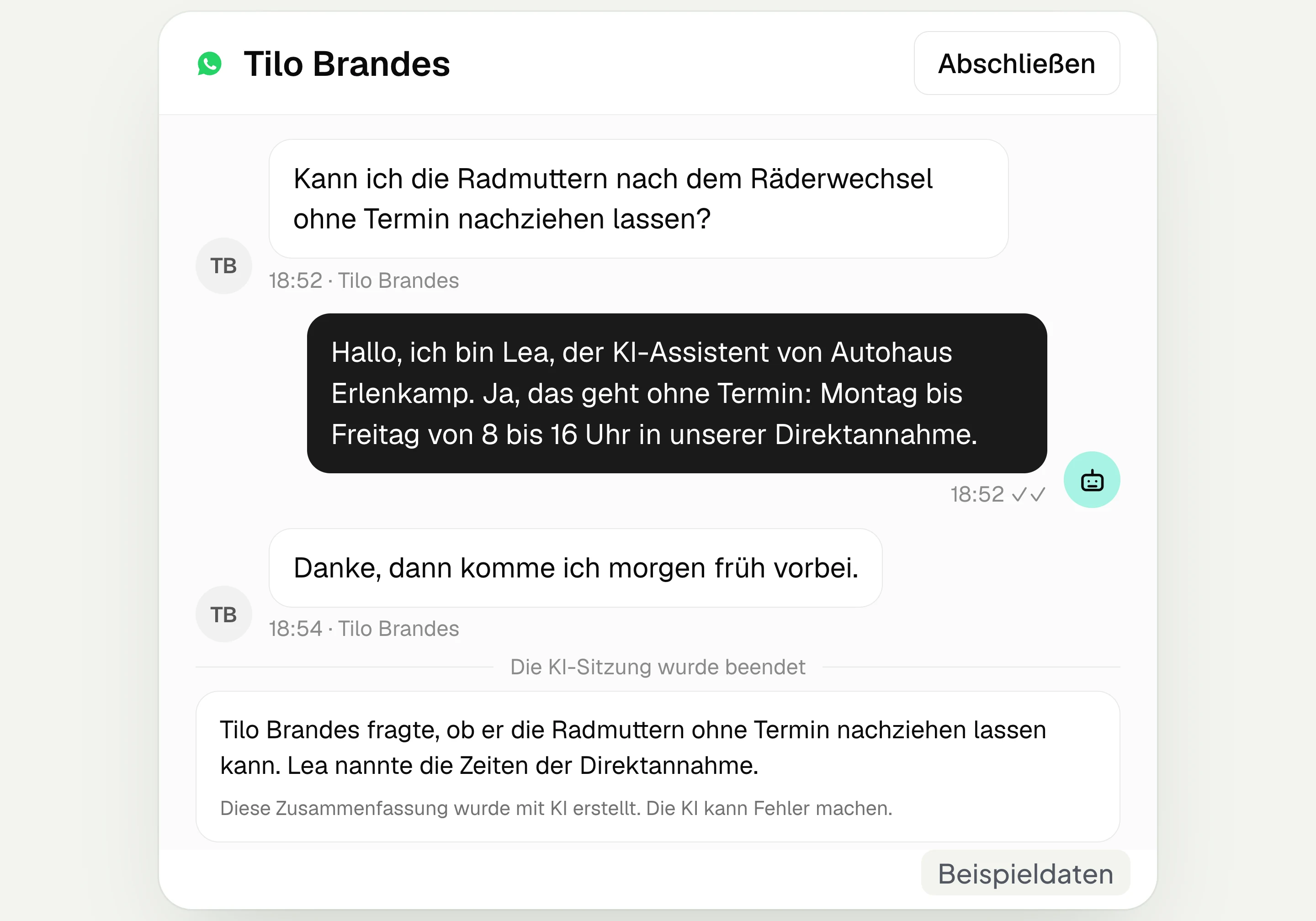
AI assistant in chat
The hellomateo AI assistant answers questions in WhatsApp, Instagram and Facebook Messenger with your knowledge. Can be added, selectable in Business Plus, included in Enterprise.

Appointment booking
With hellomateo, customers book appointments themselves on your booking page. You set services and calendars. Add-on module: €25 per month, regardless of the number of locations.
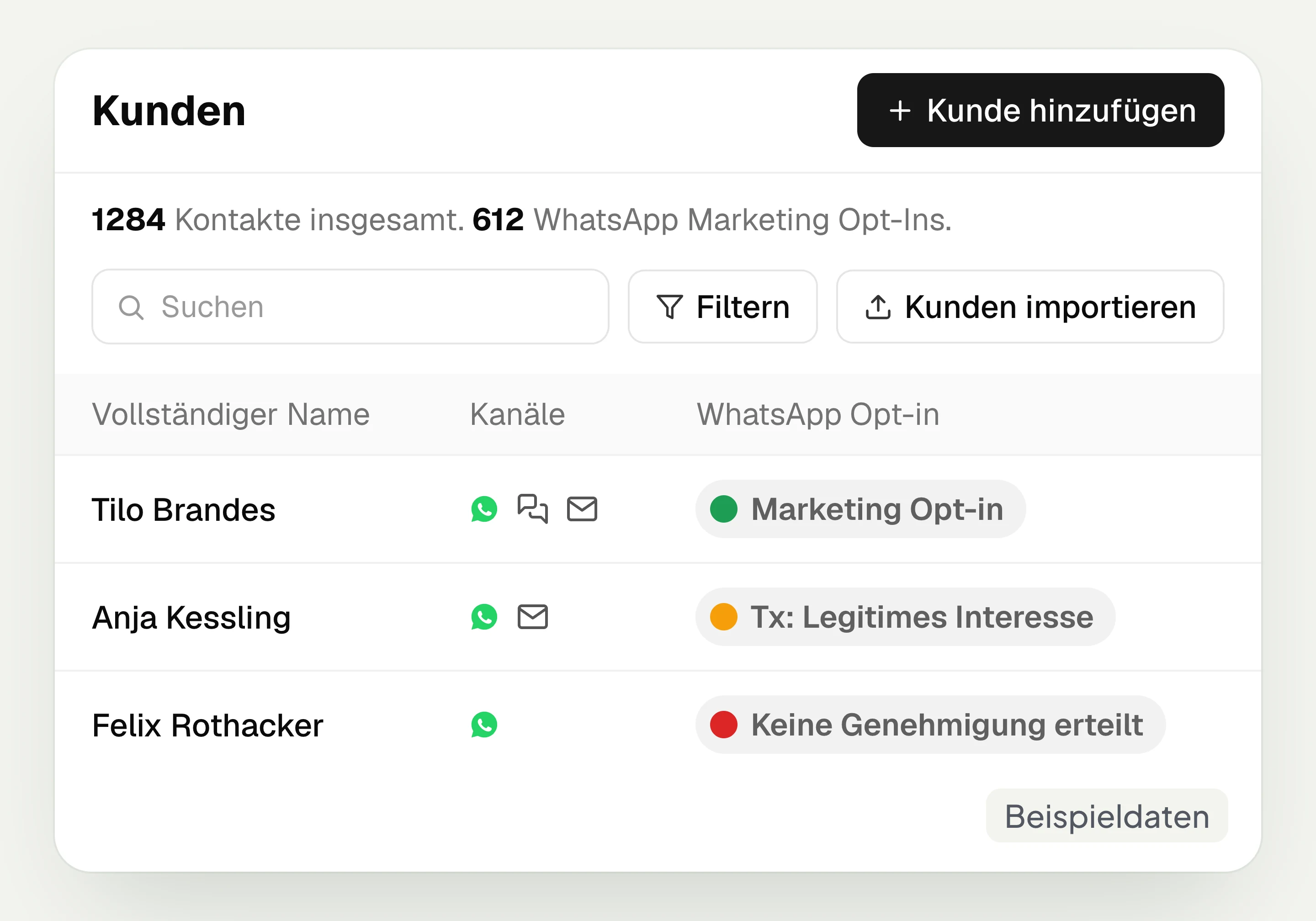
Customer and contact management
hellomateo connects contact data, conversations and consent per channel. You read notes on the contact and build recipient lists with your own filter rules.
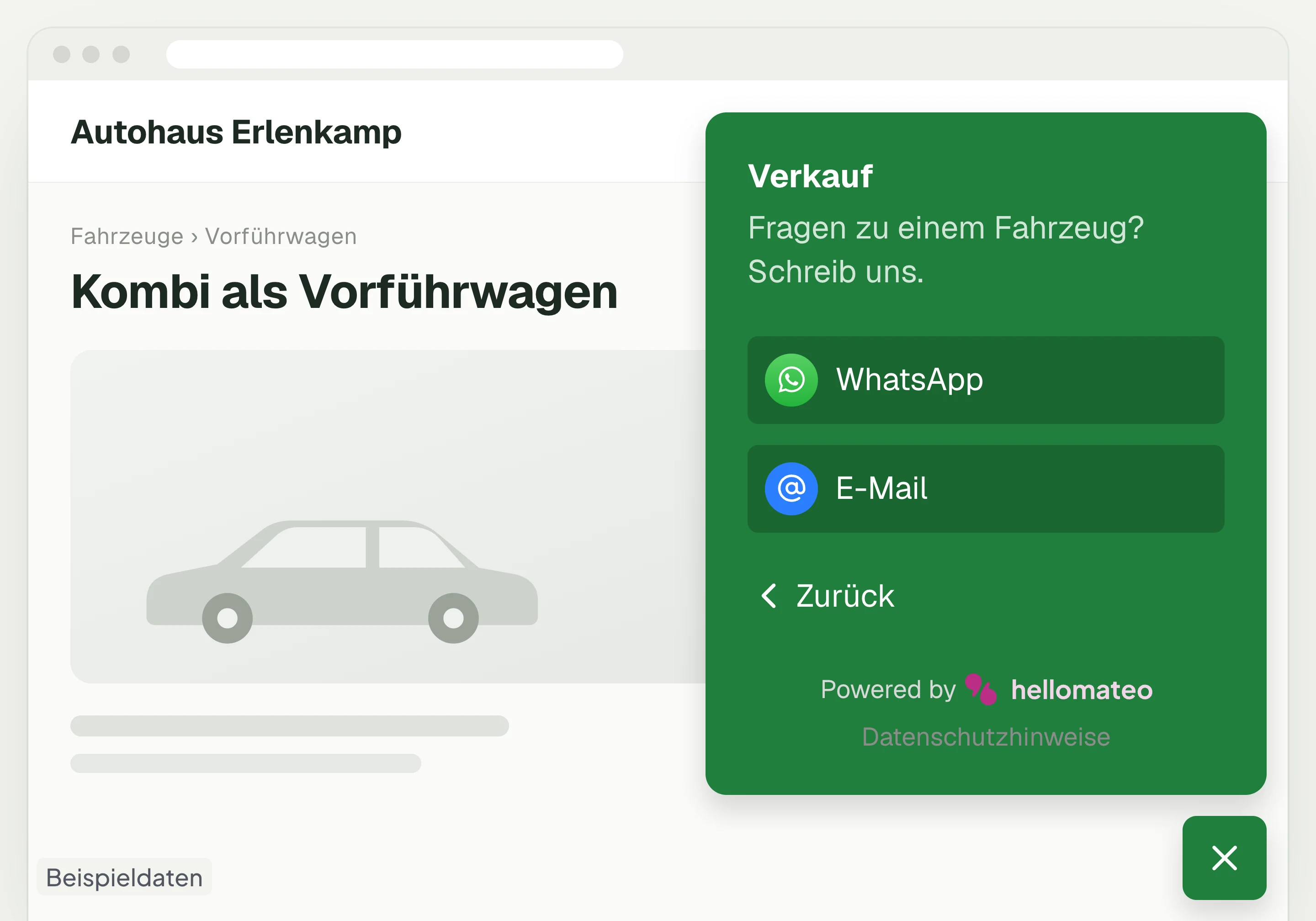
Contact through your website
A hellomateo button on your website takes visitors to WhatsApp and other channels. For connected channels, your team replies in the Central Inbox.
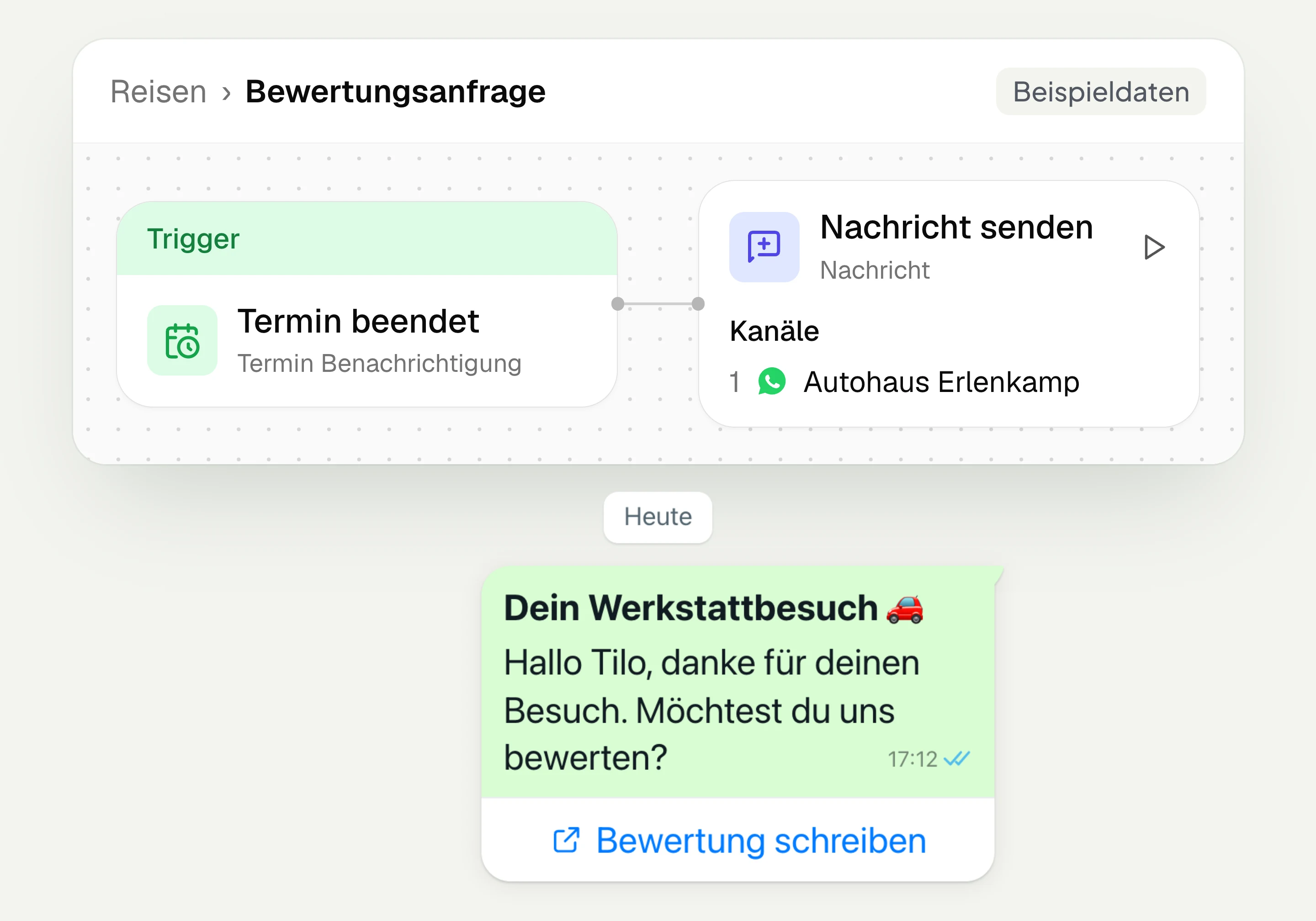
Review management
With hellomateo you request Google reviews, read reviews and reply to them. In the Business package and above, customer journeys send the review request automatically.
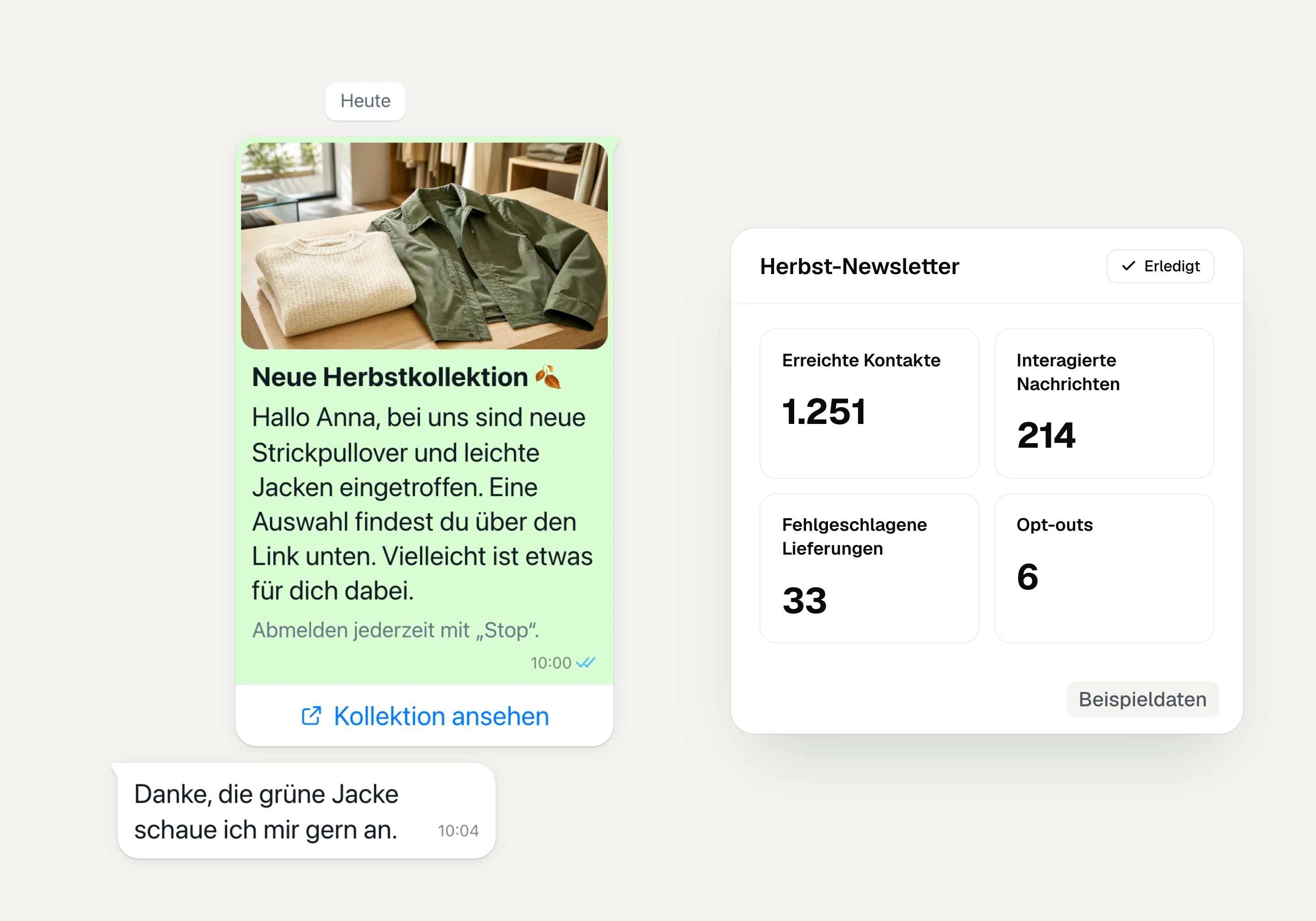
WhatsApp newsletter
With hellomateo you send WhatsApp newsletters to customers who have given consent. You choose recipients, schedule the send and see per recipient whether the message was read.
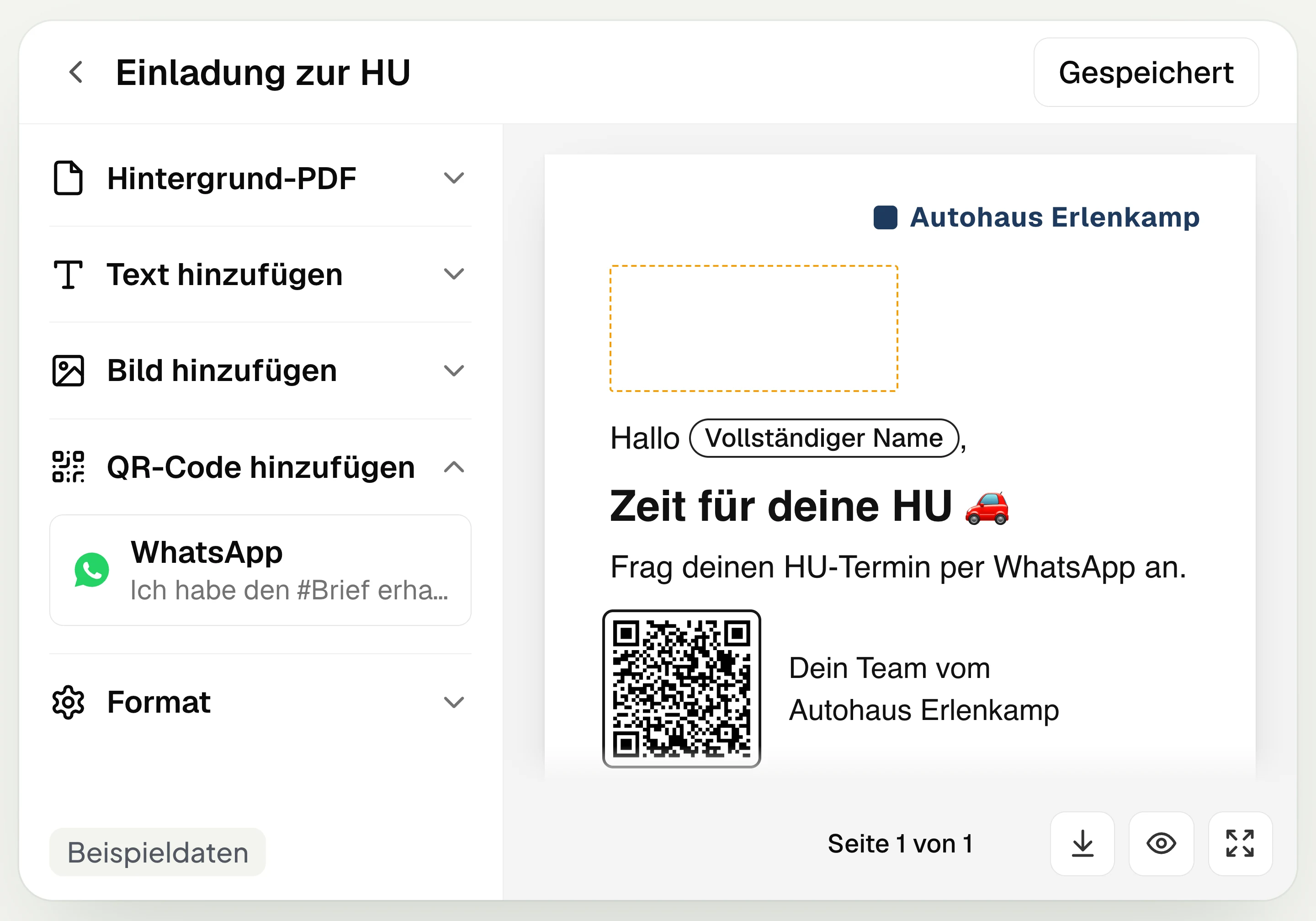
Postal mailing
With hellomateo you design and send letters with a WhatsApp QR code. Can be added in Business, selectable in Business Plus, included in Enterprise.
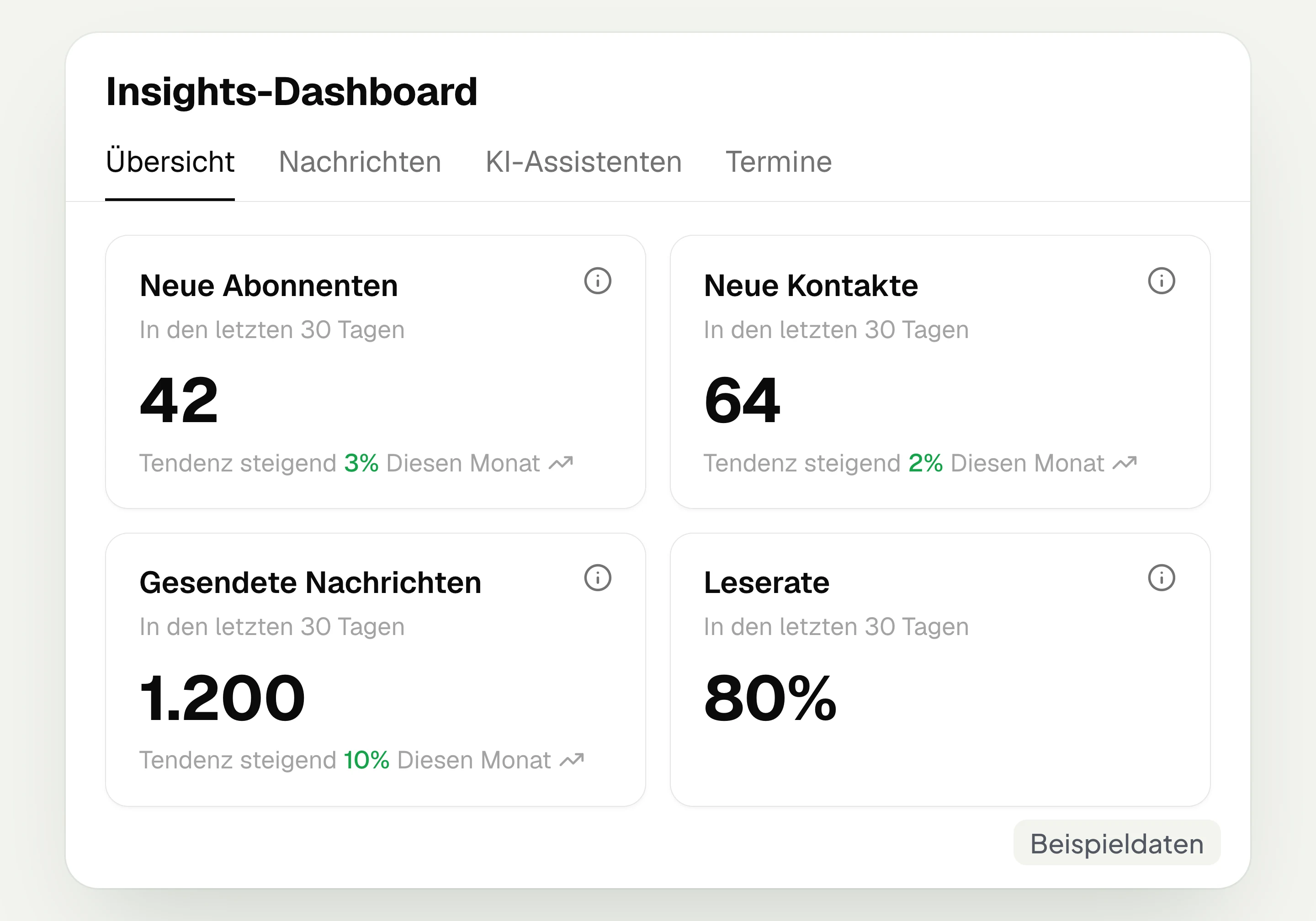
Insights
hellomateo Insights shows messages, read rate, contacts and reviews. With the respective modules, analytics on AI inquiries and appointments are added.
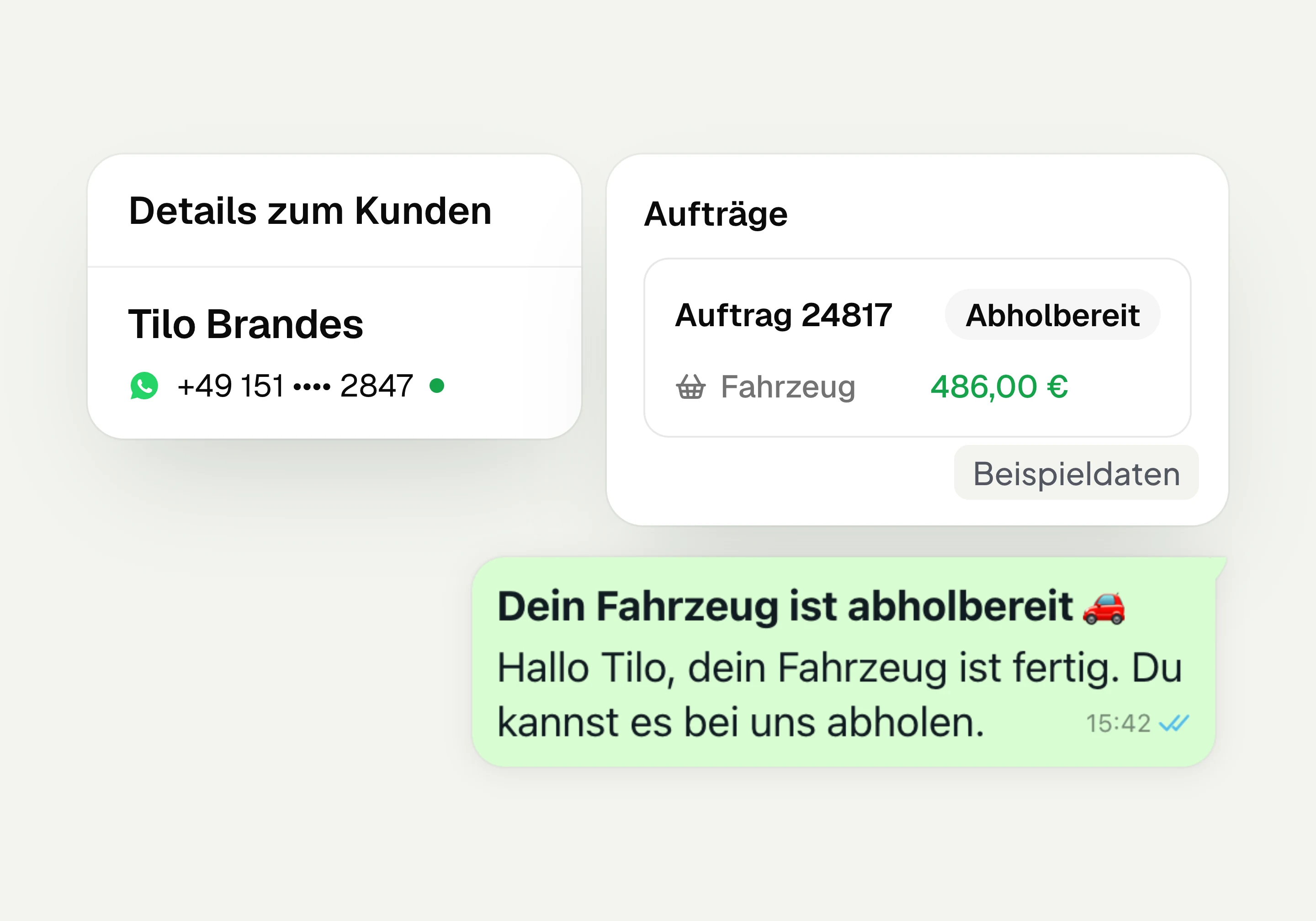
Integrations
Depending on the connection, hellomateo transfers contacts, orders and appointments from your industry software. More than 70 direct integrations are available in Business and above.
Frequently asked questions about automated invitations




Book a non-binding consultation
We would be happy to show you hellomateo in a personal demo.
Or send us an email:
What are hellomateo customer journeys?
When do automated invitations and appointment reminders go out?
Does hellomateo set up the processes, and can I look at them beforehand?
Where does the data for invitations and pickup messages come from?
What happens with customers without WhatsApp?
Do I need consent for invitations and birthday greetings?
How do I check recipients and avoid duplicate messages?
Can I change texts and timing myself later?
Can the process react to replies and button clicks?
What do customer journeys cost, and which package includes them?
How does the invitation to a replacement fitting work in hearing care?
Can I send eye test invitations and pickup messages automatically?
How do I use automated invitations for several locations?